Connect a Mailbox via IMAP / SMTP
Add any email account to Kaname using IMAP and SMTP — works with Outlook, iCloud, Zoho, Fastmail, ProtonMail Bridge, and custom email servers.
If your email account isn't Gmail or Google Workspace, you can connect it to Kaname using IMAP (for reading mail) and SMTP (for sending mail). This covers Outlook.com, Hotmail, iCloud Mail, Yahoo Mail, Zoho Mail, Fastmail, ProtonMail (via Bridge), and any custom domain email hosted on cPanel, Plesk, or a business mail server.
Before you start
- You need your email username (usually your full email address)
- You need your email password — or an app-specific password if two-factor authentication is enabled
- You need your provider's IMAP and SMTP server settings (listed below for common providers)
Using two-factor authentication (2FA)? Most providers require an app-specific password instead of your regular password when connecting third-party apps. See your provider's help docs to generate one before proceeding.
Common server settings
Use these settings in Step 3 below.
Outlook / Hotmail / Microsoft 365
| Setting | Value |
|---|---|
| IMAP host | outlook.office365.com |
| IMAP port | 993 (SSL) |
| SMTP host | smtp.office365.com |
| SMTP port | 587 (STARTTLS) |
| Username | Your full email address |
iCloud Mail
| Setting | Value |
|---|---|
| IMAP host | imap.mail.me.com |
| IMAP port | 993 (SSL) |
| SMTP host | smtp.mail.me.com |
| SMTP port | 587 (STARTTLS) |
| Username | Your Apple ID email |
| Password | App-specific password (required — generate at appleid.apple.com) |
Zoho Mail
| Setting | Value |
|---|---|
| IMAP host | imap.zoho.com |
| IMAP port | 993 (SSL) |
| SMTP host | smtp.zoho.com |
| SMTP port | 465 (SSL) or 587 (STARTTLS) |
| Username | Your full Zoho email address |
Fastmail
| Setting | Value |
|---|---|
| IMAP host | imap.fastmail.com |
| IMAP port | 993 (SSL) |
| SMTP host | smtp.fastmail.com |
| SMTP port | 465 (SSL) |
| Username | Your full Fastmail email address |
| Password | App password (generate in Fastmail → Settings → Passwords → App passwords) |
Yahoo Mail
| Setting | Value |
|---|---|
| IMAP host | imap.mail.yahoo.com |
| IMAP port | 993 (SSL) |
| SMTP host | smtp.mail.yahoo.com |
| SMTP port | 465 (SSL) |
| Username | Your full Yahoo email address |
| Password | App password (required — generate at Yahoo Account Security) |
ProtonMail (via Bridge)
ProtonMail uses end-to-end encryption that requires the ProtonMail Bridge app running locally on your computer. The Bridge exposes a local IMAP/SMTP server that Kaname connects to.
| Setting | Value |
|---|---|
| IMAP host | 127.0.0.1 |
| IMAP port | As shown in the ProtonMail Bridge app |
| SMTP host | 127.0.0.1 |
| SMTP port | As shown in the ProtonMail Bridge app |
| Username | Your ProtonMail address |
| Password | Bridge password (shown in the Bridge app, not your ProtonMail login password) |
Custom / cPanel / Business Server
Contact your email provider or IT department for your IMAP and SMTP server addresses and port numbers. These are commonly listed in your hosting provider's documentation under "Email client settings" or "IMAP/SMTP configuration."
Step 1: Open Mailbox Settings
From the Kaname app sidebar, click Settings, then click Mailboxes.
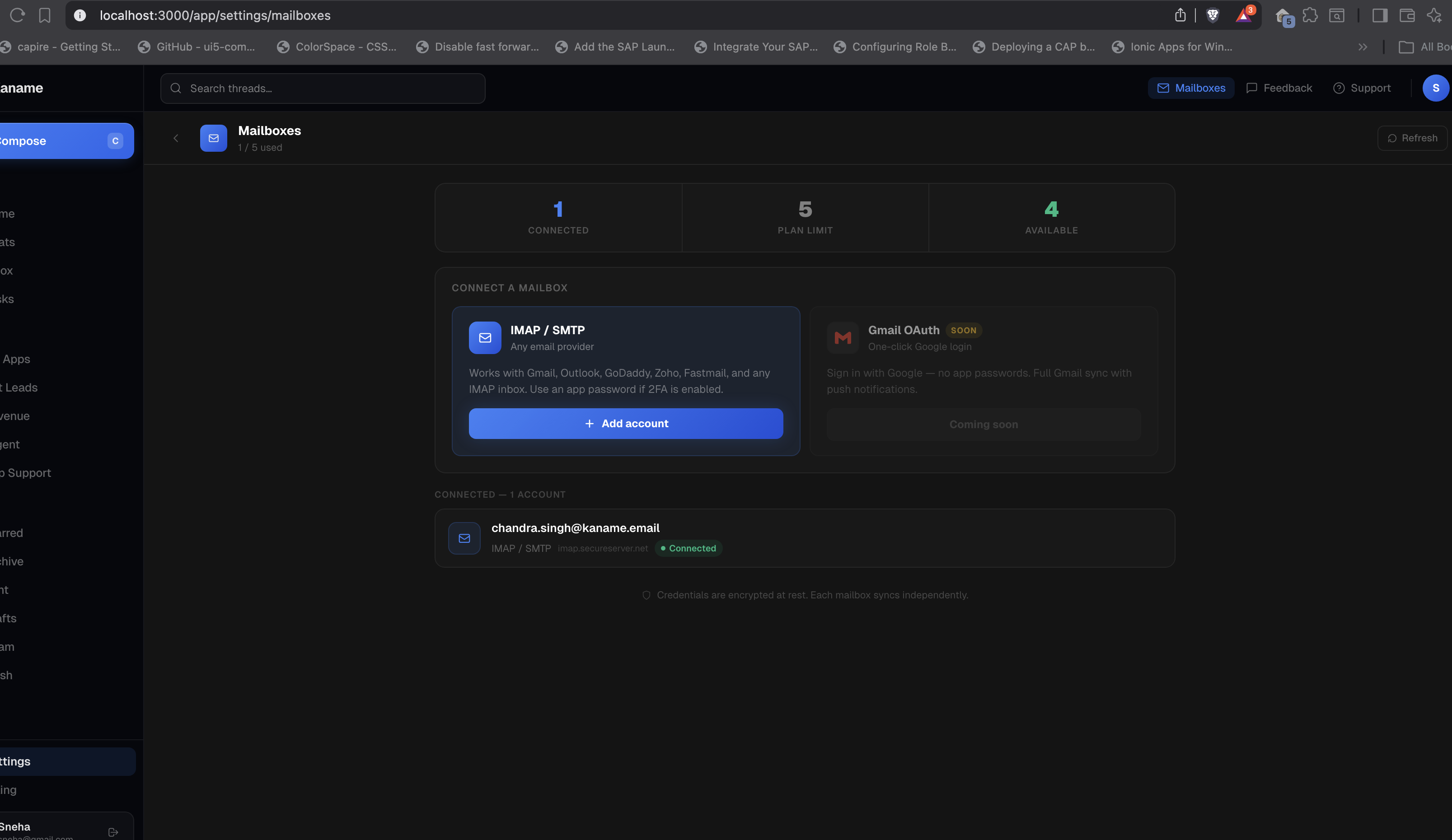
Step 2: Click "Add mailbox" → Choose IMAP/SMTP
Click Add mailbox in the top-right of the Mailboxes section.
When the connection type selector appears, choose IMAP / SMTP (or Other provider).
Step 3: Enter your server settings
Fill in the connection form:
Account details
- Email address — your full email address (e.g.
[email protected]) - Display name — the friendly name shown in the Kaname sidebar (e.g. "Business", "Outlook")
- Password — your email password or app-specific password
Incoming mail (IMAP)
- IMAP server — the IMAP hostname from the table above
- IMAP port — typically
993with SSL - Security — select SSL/TLS (recommended) or STARTTLS
Outgoing mail (SMTP)
- SMTP server — the SMTP hostname from the table above
- SMTP port — typically
465(SSL) or587(STARTTLS) - Security — select the encryption type that matches the port
Step 4: Test and save
Click Test connection. Kaname will attempt to connect to both IMAP and SMTP servers and verify the credentials.
If the test succeeds: click Save mailbox. Kaname begins syncing your threads.
If the test fails: check the following:
- Verify the server address and port are correct for your provider
- Confirm you are using an app-specific password if 2FA is enabled
- Check that IMAP access is enabled in your email provider's settings (some providers disable it by default — see below)
Enabling IMAP access in your provider
Some providers disable IMAP by default and require you to turn it on:
Outlook / Microsoft 365: Sign in at outlook.com → Settings → View all Outlook settings → Mail → Sync email → Enable IMAP access.
Yahoo Mail: Sign in → Account Security → Allow apps that use less secure sign in → On. Also generate an app password.
iCloud Mail: Go to iCloud.com → Account Settings → Turn on two-factor authentication (required), then generate an app-specific password at appleid.apple.com.
Zoho Mail: Sign in → Settings → Mail Accounts → IMAP/POP → Enable IMAP.
Step 5: Initial sync
After saving, Kaname syncs recent threads from the connected account. IMAP sync times vary by provider:
- Fastmail, Zoho, Outlook — typically 1–3 minutes
- Large inboxes — up to 10 minutes for 50,000+ messages
Kaname syncs the most recent threads first so you can start working immediately while older threads load in the background.
Sending mail via SMTP
When you reply to or compose a message from an IMAP/SMTP mailbox in Kaname, the message is sent via the SMTP server you configured. The From address is your connected email address.
If SMTP sending fails (for example, your provider blocks outbound connections on the configured port), try switching between port 465 (SSL) and port 587 (STARTTLS) in Settings → Mailboxes → [mailbox name] → Edit.
Security and credentials storage
Kaname stores your IMAP/SMTP credentials encrypted at rest. Your password is never transmitted in plain text. For maximum security, we recommend using an app-specific password rather than your main account password — this lets you revoke Kaname's access without changing your primary login.
Troubleshooting
"Authentication failed" error
- Wrong password or app-specific password expired
- 2FA is enabled and you used your regular password instead of an app password
- IMAP is disabled for your account (enable it in your provider's settings)
"Connection refused" or timeout
- Wrong IMAP/SMTP host or port
- Your email provider's firewall blocks connections from Kaname's servers
- Try the alternate port (465 vs 587 for SMTP, or 143 vs 993 for IMAP)
Emails send but don't appear in Sent
- Some providers require an additional SMTP setting to copy sent messages back to the IMAP Sent folder. Enable "Save sent mail to IMAP Sent folder" in Settings → Mailboxes → [mailbox name] → Advanced.
IMAP sync is slow
- This is normal for large inboxes on slower IMAP servers. Kaname prioritizes syncing recent threads first.
- If sync appears completely stuck after 15 minutes, try disconnecting and reconnecting the mailbox.
Also see: Connect a Gmail account via OAuth for a faster, password-free connection to Gmail and Google Workspace.